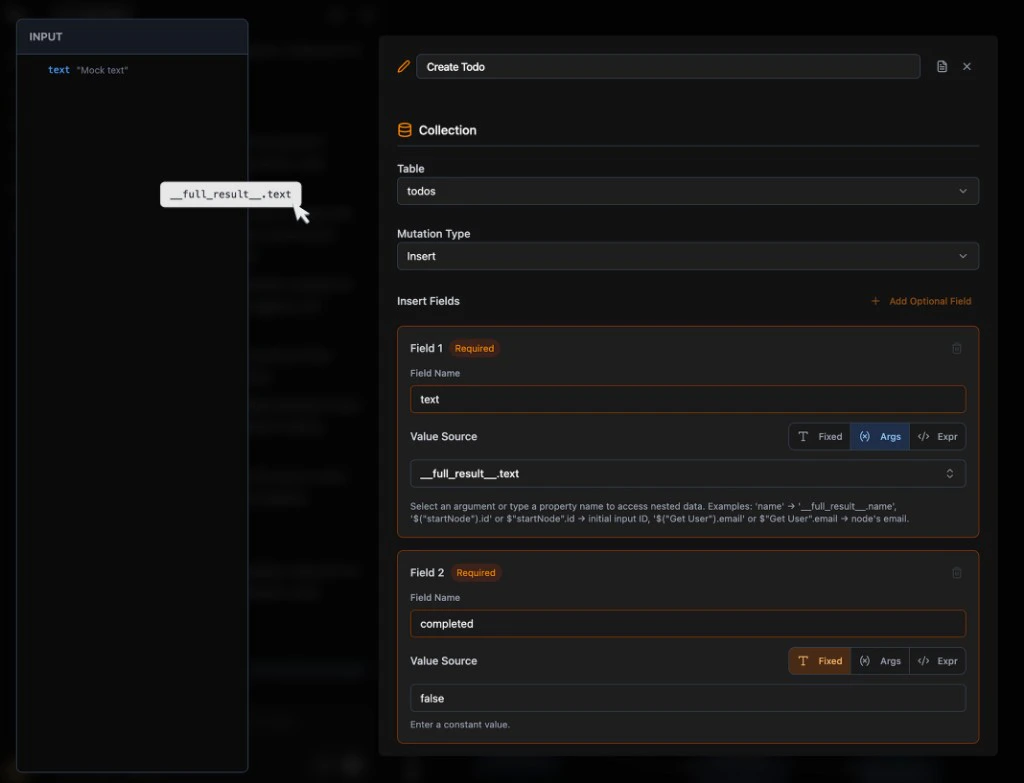

Overview

Named References allow you to access data from any previous node in your workflow by referencing the node’s label. This powerful feature enables you to build complex multi-step workflows where nodes can pull data from multiple sources, not just the immediate previous node.

Syntax Reference

SyntaxMeaningExample Use Case
$"startNode"Initial flow input from trigger nodeAccess original frontend form data or webhook request
$"startNode".body.<field>Webhook request body (POST/PUT/PATCH)Access webhook JSON body: $"startNode".body.email
$"startNode".queryParams.<param>Webhook URL query parametersAccess webhook query: $"startNode".queryParams.id
$"Node Label"Result from node with that specific labelReference a specific query or mutation result
$"Node Label".fieldNameProperty access on named resultExtract specific field: $"Get User".email
__full_result__Previous node result (legacy)Fallback syntax, always references immediate previous node

Core Concepts

1. Label-Based References

Every node in your workflow has a unique label visible on the canvas. You can reference any previous node’s output by using its label:
{
  "field": "userId",
  "mode": "From args",
  "value": "$\"Get User\"._id"
}

2. Start Node Reference

$"startNode" is a special reserved reference that always points to the initial input of your workflow:
  • For Frontend Element triggers: $"startNode".<field> accesses form/component data
  • For Webhook triggers: $"startNode".body.<field> accesses POST/PUT/PATCH body data
  • For Webhook triggers: $"startNode".queryParams.<param> accesses URL query parameters

3. Property Access

Access nested properties using dot notation:
{
  "value": "$\"Query Node\".user.email"
}
{
  "value": "$\"AI Agent\".content.summary"
}

4. Backwards Compatibility

The legacy __full_result__ syntax still works and always references the immediate previous node:
{
  "value": "__full_result__._id"
}

Data Access by Trigger Type

Frontend Element Triggers

When your workflow starts with a Frontend Element node, use $"startNode" to access form data:
// Frontend form with fields: { email: "[email protected]", name: "John" }
{
  "field": "email",
  "mode": "From args",
  "value": "$\"startNode\".email"
}

Webhook Triggers

When your workflow starts with a Webhook node, use specific properties: Request Body (POST/PUT/PATCH):
// POST /users with body: { "name": "John", "email": "[email protected]" }
{
  "field": "name",
  "mode": "From args",
  "value": "$\"startNode\".body.name"
}
Query Parameters:
// GET /users?status=active&limit=10
{
  "field": "status",
  "operator": "==",
  "value": "$\"startNode\".queryParams.status",
  "valueMode": "From args"
}
URL Path Parameters:
// PATCH /users/:userId
{
  "field": "_id",
  "operator": "==",
  "value": "$\"startNode\".params.userId",
  "valueMode": "From args"
}
Request Headers:
{
  "field": "requestId",
  "mode": "From args",
  "value": "$\"startNode\".headers[\"x-request-id\"]"
}
HTTP Method:
{
  "field": "$\"startNode\".method",
  "operator": "equals",
  "value": "POST"
}

Cron Triggers

Cron jobs start with empty input ({}), so $"startNode" returns an empty object. Build your workflow using queries and fixed values instead.

Common Use Cases

1. Referencing Initial Input Throughout Long Flows

Access the original user input even after multiple nodes:
Frontend → Query "Find User" → Query "Get Settings" → Mutation

Mutation fields:
{
  "field": "userName",
  "mode": "From args",
  "value": "$\"Find User\".name"           // From first Query
},
{
  "field": "maxLimit",
  "mode": "From args",
  "value": "$\"Get Settings\".limit"       // From second Query
},
{
  "field": "requestedBy",
  "mode": "From args",
  "value": "$\"startNode\".adminId"        // From original frontend input
}

2. Combining Results from Multiple Nodes

Use data from different previous nodes in the same operation:
Frontend → Query "Get Users" → Query "Get Config" → Mutation

Mutation fields:
{
  "field": "userCount",
  "mode": "Expression",
  "value": "$\"Get Users\".length"
},
{
  "field": "maxUsers",
  "mode": "From args",
  "value": "$\"Get Config\".maxUsers"
}

3. Patch Mutation with Named Reference

Update a record using its ID from a query and data from frontend:
Frontend → Query "Fetch User" → Mutation (patch)

Mutation configuration:
{
  "mutationType": "Patch",
  "pathIdMode": "From args",
  "pathIdValue": "$\"Fetch User\"._id",      // ID from Query
  "patchMutations": [
    {
      "field": "name",
      "mode": "From args",
      "value": "$\"startNode\".name"         // Name from frontend
    }
  ]
}

4. HTTP Request with Multi-Source Data

Build API requests using data from multiple previous nodes:
Frontend → Query "Get User" → HTTP Request

HTTP Request configuration:
{
  "method": "POST",
  "url": "https://api.example.com/sync",
  "urlParams": [
    {
      "name": "userId",
      "mode": "From args",
      "value": "$\"Get User\"._id"           // From Query
    }
  ],
  "queryParams": [
    {
      "name": "action",
      "mode": "From args",
      "value": "$\"startNode\".action"       // From frontend input
    }
  ]
}

5. Conditional Logic with Named References

Use data from specific nodes in If-Else conditions:
Frontend → Query "Count Items" → Query "Get Limits" → If-Else

If-Else condition:
{
  "field": "$\"Count Items\".count",
  "operator": "greater_than",
  "value": "$\"Get Limits\".limit",
  "valueMode": "From args"
}

6. For Loop with Named References

Loop over data from a specific node while accessing data from other nodes:
Frontend → Query "Get Users" → HTTP "Get Config" → For Loop → Mutation

For Loop configuration:
{
  "arraySource": "$\"Get Users\"",           // Loop over Query result
  "itemVariable": "user"
}

Mutation inside loop:
{
  "insertFields": [
    {
      "field": "userId",
      "mode": "From args",
      "value": "user._id"                    // Current loop item
    },
    {
      "field": "config",
      "mode": "From args",
      "value": "$\"Get Config\".defaultConfig"  // From HTTP result
    }
  ]
}

7. Expression Mode with Named References

Perform calculations and transformations using data from multiple nodes:
{
  "field": "fullName",
  "mode": "Expression",
  "value": "$\"startNode\".firstName + ' ' + $\"startNode\".lastName"
}
{
  "field": "slug",
  "mode": "Expression",
  "value": "$\"Fetch Data\".name.toLowerCase().replace(/[^a-z0-9]/g, '-')"
}
{
  "field": "totalPrice",
  "mode": "Expression",
  "value": "$\"Get Product\".price * $\"startNode\".quantity"
}

Important Rules

1. JSON Formatting - Escape Quotes

When using named references in JSON configurations, you must escape the quotes: ❌ WRONG - Invalid JSON:
{
  "value": "$"startNode".email"
}
✅ CORRECT - Valid JSON:
{
  "value": "$\"startNode\".email"
}

2. Node Labels Must Be Unique

Each node must have a unique label in your workflow. Duplicate labels will cause unexpected behavior.

3. Reference Only Previous Nodes

You can only reference nodes that appear earlier in the workflow execution path. You cannot reference nodes that come after or are in parallel branches.

4. Special Reserved Labels

  • startNode is reserved for the initial trigger input
  • Node labels are case-sensitive
  • Labels are visible on the canvas UI

5. Fallback Behavior

If a named reference cannot be found, the system may fall back to __full_result__ behavior for backwards compatibility.

When to Use Named References

Use $"Node Label" When:

  • ✅ You need to access initial input later in a long chain
  • ✅ You want to combine data from multiple previous nodes
  • ✅ You need to reference a specific node that’s not the immediate previous one
  • ✅ You’re building complex multi-step flows with data from different sources
  • ✅ You want explicit and readable variable references

Use __full_result__ When:

  • ✅ You only need data from the immediate previous node
  • ✅ You want simple, straightforward data passing
  • ✅ Backwards compatibility with existing flows is important
  • ✅ The default behavior is sufficient

Both Syntaxes Work Together:

You can mix both $"Node Label" and __full_result__ in the same workflow. Use whichever makes your workflow clearer and more maintainable.

Migration from full_result

Before (using full_result):

Frontend → Query → Mutation

Mutation:
{
  "pathIdValue": "__full_result__._id",
  "patchMutations": [
    {
      "field": "status",
      "mode": "From args",
      "value": "__full_result__.status"
    }
  ]
}

After (using named references):

Frontend → Query "Get Record" → Mutation

Mutation:
{
  "pathIdValue": "$\"Get Record\"._id",
  "patchMutations": [
    {
      "field": "status",
      "mode": "From args",
      "value": "$\"Get Record\".status"
    }
  ]
}
Note: Both work identically in this case. Use named references for clarity, __full_result__ for simplicity.

Complete Examples

Example 1: User Profile Update

Flow: Frontend → Query “Find User” → Mutation “Update User” Query configuration:
{
  "functionName": "findUserByEmail",
  "operators": [
    {
      "type": "Filter",
      "field": "email",
      "value": "$\"startNode\".email",
      "valueMode": "From args"
    }
  ]
}
Mutation configuration:
{
  "mutationType": "Patch",
  "pathIdMode": "From args",
  "pathIdValue": "$\"Find User\"._id",
  "patchMutations": [
    {
      "field": "name",
      "mode": "From args",
      "value": "$\"startNode\".name"
    },
    {
      "field": "phone",
      "mode": "From args",
      "value": "$\"startNode\".phone"
    }
  ]
}

Example 2: Webhook with Multi-Node Data

Flow: Webhook (POST /create-order) → Query “Get Product” → Query “Get User” → Mutation “Create Order” Webhook receives: { "productId": "123", "userId": "456", "quantity": 2 } First Query (Get Product):
{
  "operators": [
    {
      "type": "Filter",
      "field": "_id",
      "value": "$\"startNode\".body.productId",
      "valueMode": "From args"
    }
  ]
}
Second Query (Get User):
{
  "operators": [
    {
      "type": "Filter",
      "field": "_id",
      "value": "$\"startNode\".body.userId",
      "valueMode": "From args"
    }
  ]
}
Mutation (Create Order):
{
  "mutationType": "Insert",
  "insertFields": [
    {
      "field": "productName",
      "mode": "From args",
      "value": "$\"Get Product\".name"
    },
    {
      "field": "productPrice",
      "mode": "From args",
      "value": "$\"Get Product\".price"
    },
    {
      "field": "userName",
      "mode": "From args",
      "value": "$\"Get User\".name"
    },
    {
      "field": "userEmail",
      "mode": "From args",
      "value": "$\"Get User\".email"
    },
    {
      "field": "quantity",
      "mode": "From args",
      "value": "$\"startNode\".body.quantity"
    },
    {
      "field": "totalPrice",
      "mode": "Expression",
      "value": "$\"Get Product\".price * $\"startNode\".body.quantity"
    }
  ]
}

Example 3: Complex Conditional with Multiple References

Flow: Frontend → Query “Count Items” → Query “Get Limits” → If-Else → [branches] → Mutation If-Else condition:
{
  "conditions": [
    {
      "field": "$\"Count Items\".count",
      "operator": "greater_than",
      "value": "$\"Get Limits\".limit",
      "valueMode": "From args"
    }
  ]
}
True branch Mutation:
{
  "insertFields": [
    {
      "field": "status",
      "mode": "Fixed",
      "value": "exceeded"
    },
    {
      "field": "actualCount",
      "mode": "From args",
      "value": "$\"Count Items\".count"
    },
    {
      "field": "maxLimit",
      "mode": "From args",
      "value": "$\"Get Limits\".limit"
    },
    {
      "field": "userId",
      "mode": "From args",
      "value": "$\"startNode\".userId"
    }
  ]
}

Troubleshooting

Common Errors

Error: “Cannot read property of undefined”
  • Check that the node label exists and matches exactly (case-sensitive)
  • Ensure the referenced node comes before the current node in the flow
  • Verify the field path is correct
Error: “Invalid JSON”
  • Ensure quotes are properly escaped: $\"Node Label\" not $"Node Label"
  • Check for missing commas or brackets in your JSON
Getting empty or null values:
  • Verify the previous node actually returned data
  • Check that the field name is spelled correctly
  • Ensure you’re using the correct syntax for your trigger type (e.g., .body for webhooks)

Best Practices

  1. Use descriptive node labels - “Get User” is better than “Query 1”
  2. Be consistent - Choose named references OR __full_result__ for simple chains
  3. Test incrementally - Add one reference at a time and verify it works
  4. Document complex flows - Add notes explaining which node provides which data
  5. Escape quotes properly - Always use $\"Node Label\" in JSON configurations