

How It Works
Every flow starts with an entry node (such as a Start Node, Webhook, or Cron) and connects through action nodes. Flow Activation runs this entire pipeline with test data so you can see exactly what happens at each step.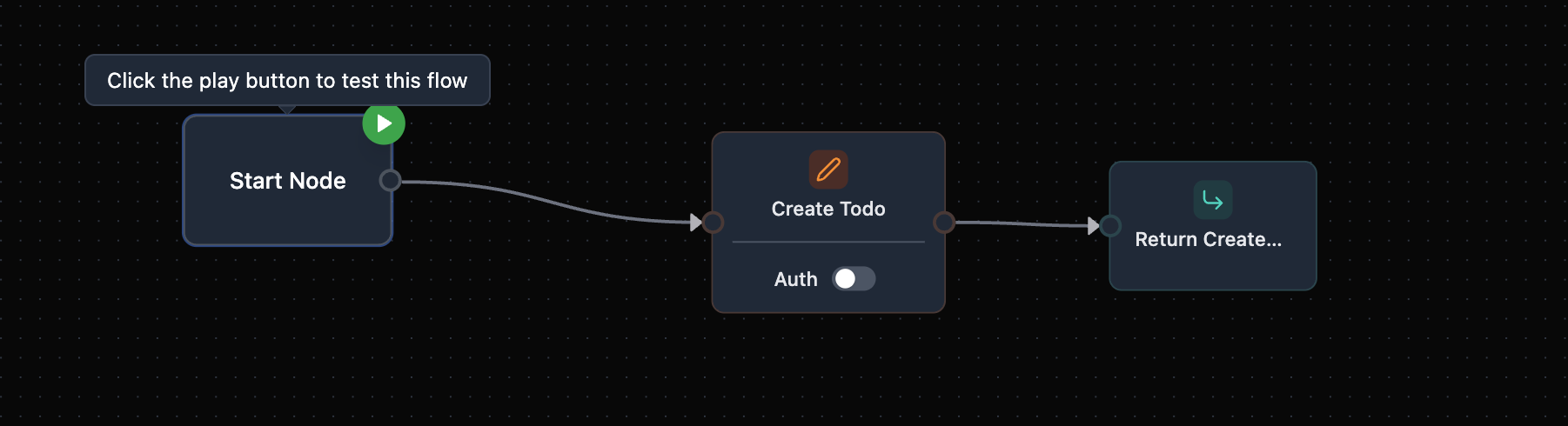
Running a Flow
1
Click the play button
Click the play button on the Start Node of your flow. This opens the Test Flow dialog where you can configure the input data for your test run.
2
Configure test data
Choose between Use Test Data (auto-generated mock data based on your node configuration) or Custom JSON Input to provide your own payload. VibeFlow analyzes downstream nodes and generates realistic mock values. For example, a 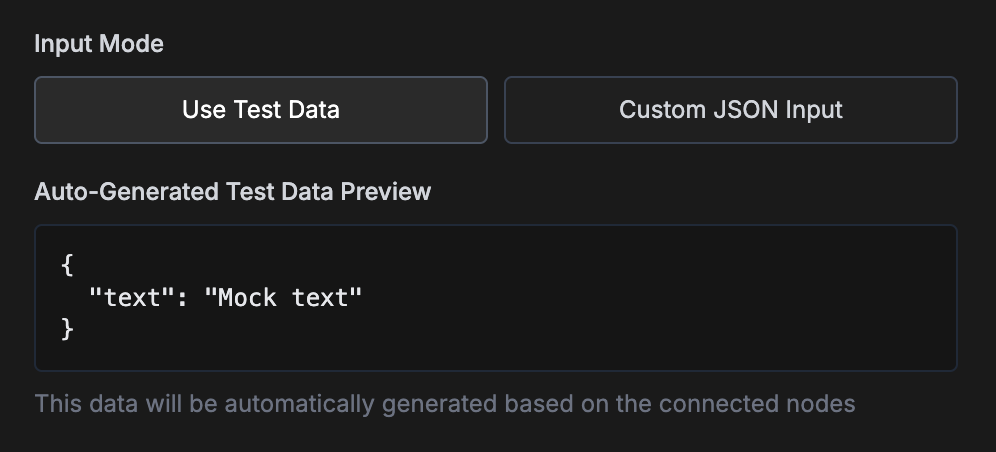
text field gets "Mock text" as a default value.3
Observe execution
Once you click Run Test, VibeFlow executes each node in topological order. Nodes light up as they execute, transitioning from idle to executing to completed (or error). Edges animate to show data flowing between nodes.
4
Inspect captured data
After execution, click any node to see its Captured Input and Captured Output. This shows the exact data that flowed in and out of each node, along with timestamps.
Captured Input & Output
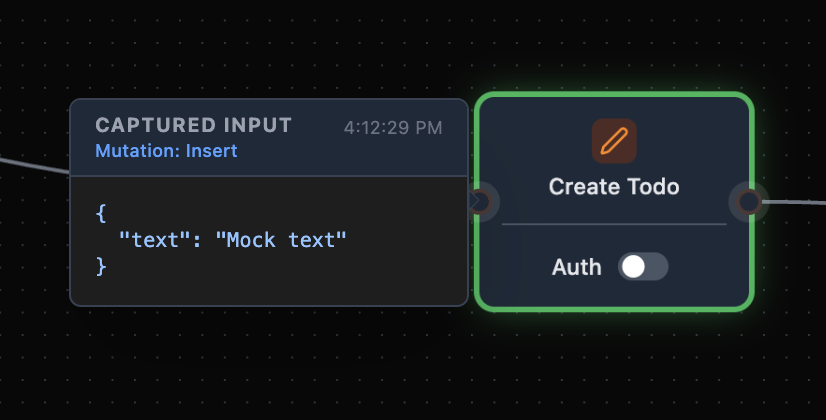
Every node in an activated flow captures the data it received and the data it produced. This makes it straightforward to trace how data transforms as it moves through your workflow.Captured Input
The input panel shows the exact payload a node received from its upstream connection. In this example, the Create Todo mutation node receives thetext field from the Start Node input.
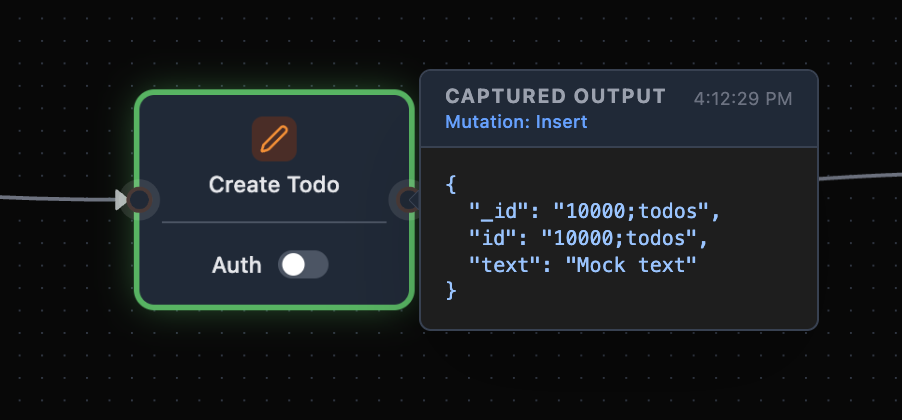
Captured Output
The output panel shows what a node returned after execution. For a mutation insert, this includes the newly created document with its generated_id and id fields alongside the input data.
Discovering Available Variables
Captured data is also the easiest way to figure out which variables you can use when wiring up nodes. After running a flow, you can see every field a node produces and drag variables directly from the captured panels into fields on other nodes. For a full guide on variable references and how to pass data between nodes, see Named References.Auto-Generated Test Data
When you select Use Test Data, VibeFlow automatically generates mock values based on your node configuration:
This means you can test flows immediately without manually crafting input payloads. For more control, switch to Custom JSON Input and provide your own JSON.
Authentication Toggle
Nodes that support authentication display an Auth toggle at the bottom. When enabled, the node requires a valid user session to execute. During flow activation, authentication is automatically simulated. VibeFlow stubs auth calls with a simulated user identity, so auth-enabled nodes execute normally without requiring a real login session.Error Handling
If a node fails during activation, it shows an error state with the error message. Downstream nodes are automatically skipped when an upstream node fails, so you can quickly identify the root cause of issues without wading through cascading errors.Next Steps
Mutation Node
Learn how to configure database mutations in your flows
Return Node
Configure how your flow returns data to the caller
Named References
Reference data from any upstream node using named references
Quick Start
Build and test your first flow from scratch